> ## Documentation Index
> Fetch the complete documentation index at: https://docs.paymentoptions.com/llms.txt
> Use this file to discover all available pages before exploring further.
# WooCommerce
> Installation Guide for WooCommerce
 * **Description**: Accept secure payments in your WooCommerce store.
## **Steps for Manual Installation**
First, you need to [download the plugin from the source](https://github.com/Kavi-PO/woocommerce-plugin.git) (which will be a zip file).
Next, you need to go to the WordPress admin area and visit Plugins
» Add New page.
After that, click on the 'Upload Plugin' button on top of the page.
This will reveal the plugin upload form. Here you need to click on the 'Choose File' button and select the plugin file you downloaded earlier to your computer.
After you have selected the file, you need to click on the 'Install Now' button.
WordPress will now upload the plugin file from your computer and install it for you. You will see a success message like this after the installation is finished.
Once installed, you need to click on the Activate Plugin link to start using the plugin.
After activation, you need to enable plugin & configure payment options like Merchant ID, API key provided by payment options.
After configured, click the 'Save' button.
## **Screenshots**
### Backend
* **Description**: Accept secure payments in your WooCommerce store.
## **Steps for Manual Installation**
First, you need to [download the plugin from the source](https://github.com/Kavi-PO/woocommerce-plugin.git) (which will be a zip file).
Next, you need to go to the WordPress admin area and visit Plugins
» Add New page.
After that, click on the 'Upload Plugin' button on top of the page.
This will reveal the plugin upload form. Here you need to click on the 'Choose File' button and select the plugin file you downloaded earlier to your computer.
After you have selected the file, you need to click on the 'Install Now' button.
WordPress will now upload the plugin file from your computer and install it for you. You will see a success message like this after the installation is finished.
Once installed, you need to click on the Activate Plugin link to start using the plugin.
After activation, you need to enable plugin & configure payment options like Merchant ID, API key provided by payment options.
After configured, click the 'Save' button.
## **Screenshots**
### Backend
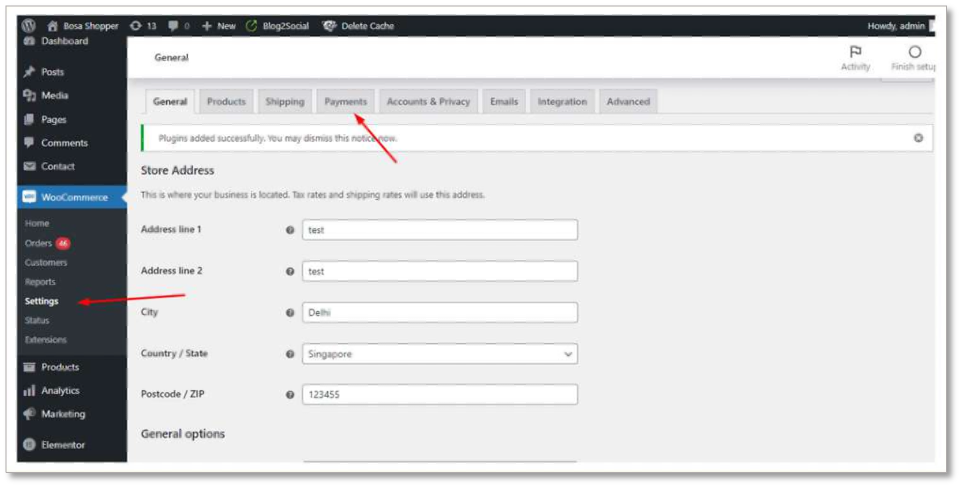
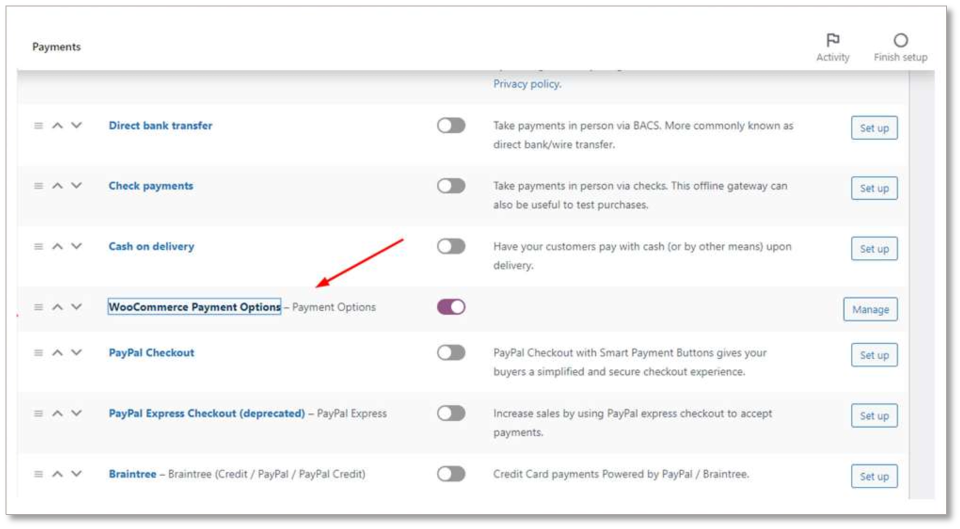
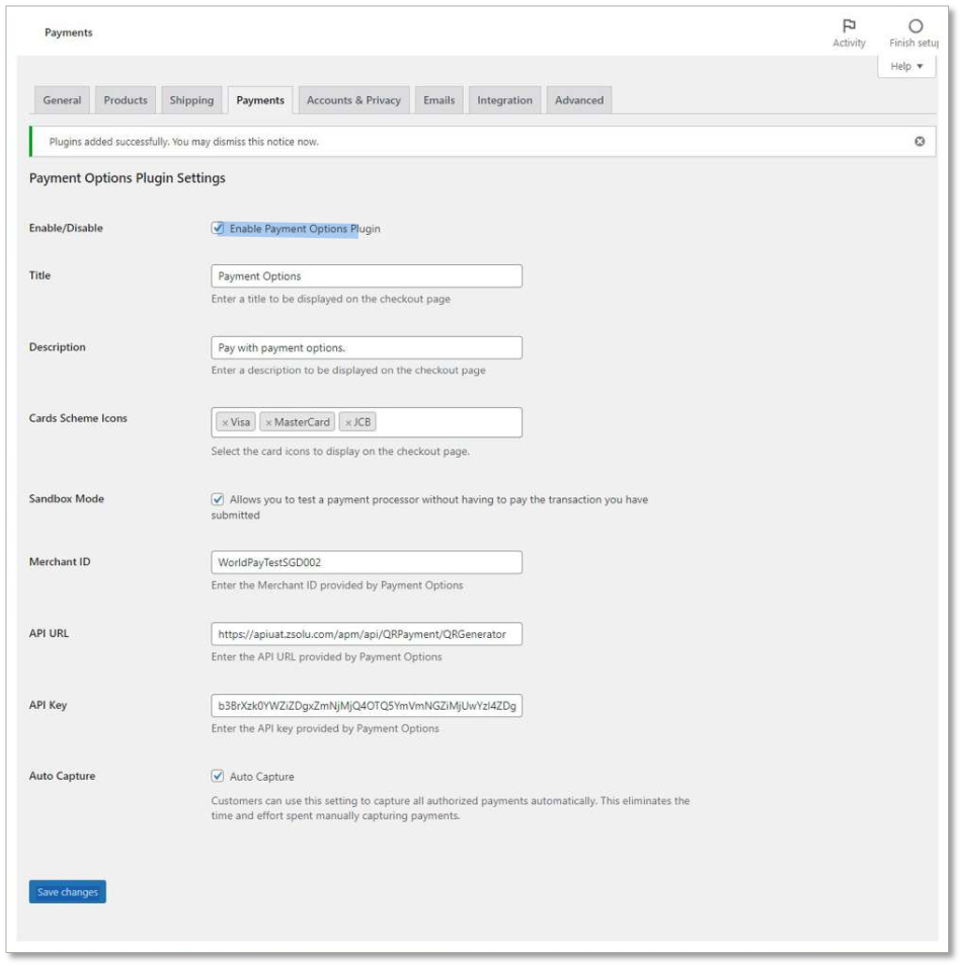 ### Frontend
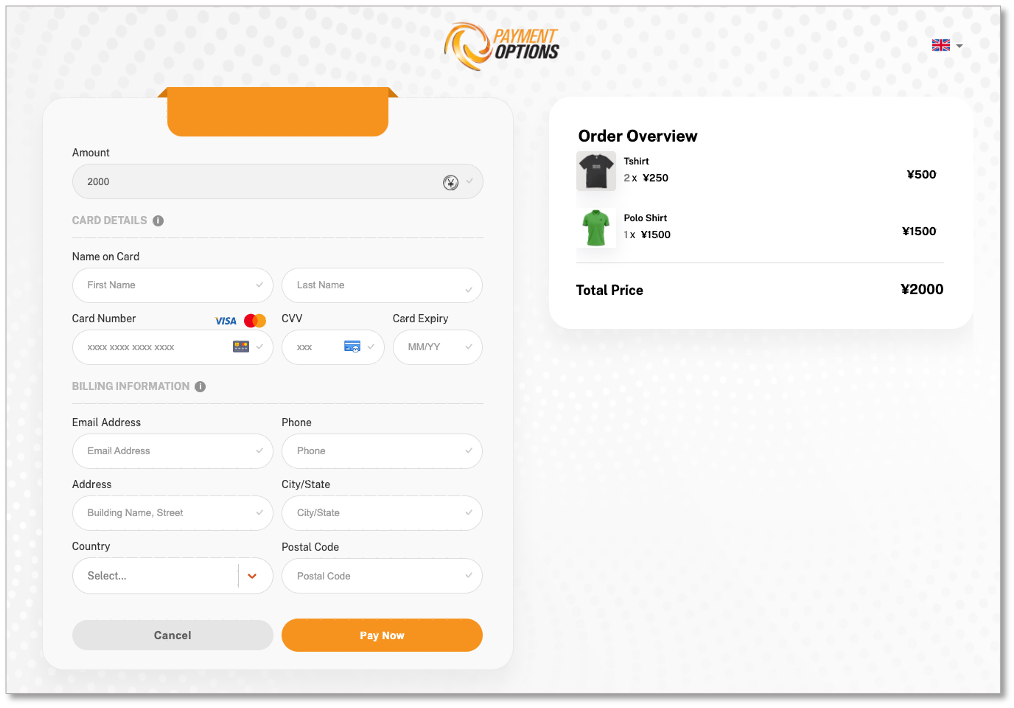 If you need further assistance, please [reach out to our support team](./support/contact). Our team is here to help you troubleshoot and resolve any issues you may be experiencing.