> ## Documentation Index
> Fetch the complete documentation index at: https://docs.paymentoptions.com/llms.txt
> Use this file to discover all available pages before exploring further.
# OpenCart
> Installation Guide for Opencart 3.0.x.x – 3.1.x.x
 * **Description**: Enable Gateway payments for OpenCart.
## **Mandatory requirements to be in the machine while installation**
* PHP version 5.6+
* cURL
* OpenSSL
* Opencart 3.0.x.x or 3.1.x.x
* Installation can be done only through the cPanel/FTP/Admin Panel. This module may not support one-page checkout template
## **SME Dasgateway payment module installation**
Module Installation can be done through
* FTP Server/cPanel OR
* Admin Panel
## **Module installation through FTP Server/cPanel**
Install Opencart 3.0.x.x or above on your server
Download the latest Source code zip file from the Payment Options GitHub
( Use the download Link : [https://github.com/paymentoptions/opencart-extension](https://github.com/paymentoptions/opencart-extension) )
Unzip “dasgatewayqr\_oc\_payment\_module\_3-0-x.ocmod.zip”
Upload the ‘admin’ and ‘catalogue’ folders into your Opencart route directory through the FTP client
## **Module Installation through Admin Panel**
Login to the admin panel with credentials
Download the latest binary zip file from the Payment Options GitHub
( Use the download Link : [https://github.com/paymentoptions/opencart-extension/releases](https://github.com/paymentoptions/opencart-extension/releases) )
Unzip “dasgatewayqr\_oc\_payment\_module\_3-0-x.ocmod.zip”
* **Description**: Enable Gateway payments for OpenCart.
## **Mandatory requirements to be in the machine while installation**
* PHP version 5.6+
* cURL
* OpenSSL
* Opencart 3.0.x.x or 3.1.x.x
* Installation can be done only through the cPanel/FTP/Admin Panel. This module may not support one-page checkout template
## **SME Dasgateway payment module installation**
Module Installation can be done through
* FTP Server/cPanel OR
* Admin Panel
## **Module installation through FTP Server/cPanel**
Install Opencart 3.0.x.x or above on your server
Download the latest Source code zip file from the Payment Options GitHub
( Use the download Link : [https://github.com/paymentoptions/opencart-extension](https://github.com/paymentoptions/opencart-extension) )
Unzip “dasgatewayqr\_oc\_payment\_module\_3-0-x.ocmod.zip”
Upload the ‘admin’ and ‘catalogue’ folders into your Opencart route directory through the FTP client
## **Module Installation through Admin Panel**
Login to the admin panel with credentials
Download the latest binary zip file from the Payment Options GitHub
( Use the download Link : [https://github.com/paymentoptions/opencart-extension/releases](https://github.com/paymentoptions/opencart-extension/releases) )
Unzip “dasgatewayqr\_oc\_payment\_module\_3-0-x.ocmod.zip”
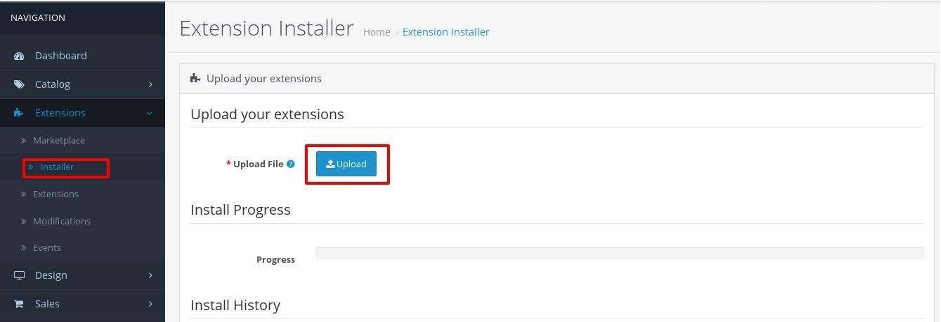 Go to your Opencart store admin using username and password, click on the extension option under the Extension menu and select the Payments option from the dropdown list at the top of the screen
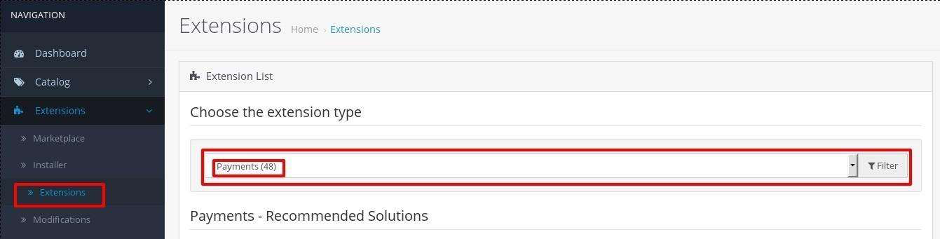 Under the Payment List, you will find the “SME Dasgateway” Payment option
Install the “SME Dasgateway” Payment module by clicking the “+” option
Under the Payment List, you will find the “SME Dasgateway” Payment option
Install the “SME Dasgateway” Payment module by clicking the “+” option
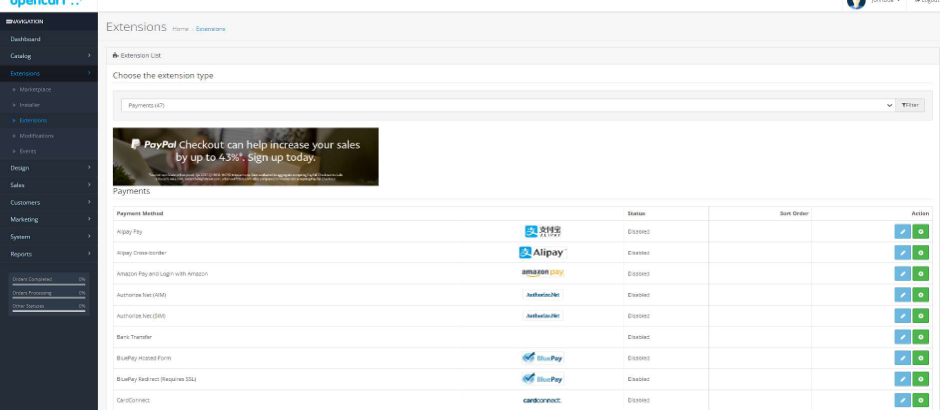 From the list select the SME category
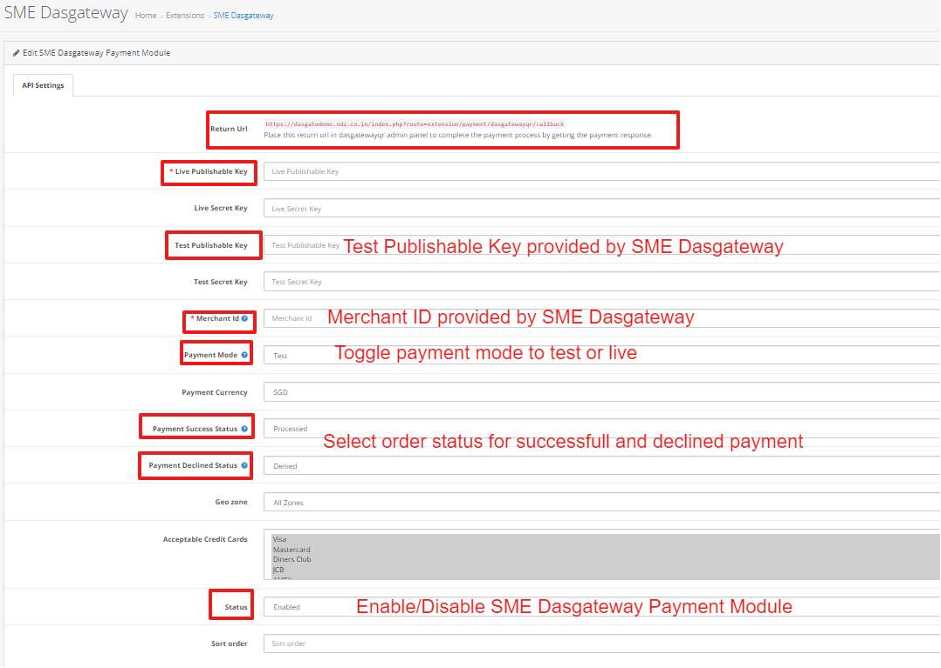
 After completing the installation, click the edit button to open the “SME Dasgateway” configuration page
Access Token - Enter Your `Secret API Key` received from Payment Options
Merchant ID - Enter Your `Merchant ID` received from Payment Options
Toggle Live or Test to select the processing environment
Set sort order and enable the module to enable the payment option on the Payment Page
After completing the installation, click the edit button to open the “SME Dasgateway” configuration page
Access Token - Enter Your `Secret API Key` received from Payment Options
Merchant ID - Enter Your `Merchant ID` received from Payment Options
Toggle Live or Test to select the processing environment
Set sort order and enable the module to enable the payment option on the Payment Page
 If you need further assistance, please [reach out to our support team](./support/contact). Our team is here to help you troubleshoot and resolve any issues you may be experiencing.